Starlink App – Complete Guide to Setup, Management, and Troubleshooting.
The Starlink App is the official mobile application used to install, manage, and monitor your Starlink satellite internet system. Developed by Starlink, the app is a core part of the Starlink experience—without it, proper setup and performance optimization would be difficult.
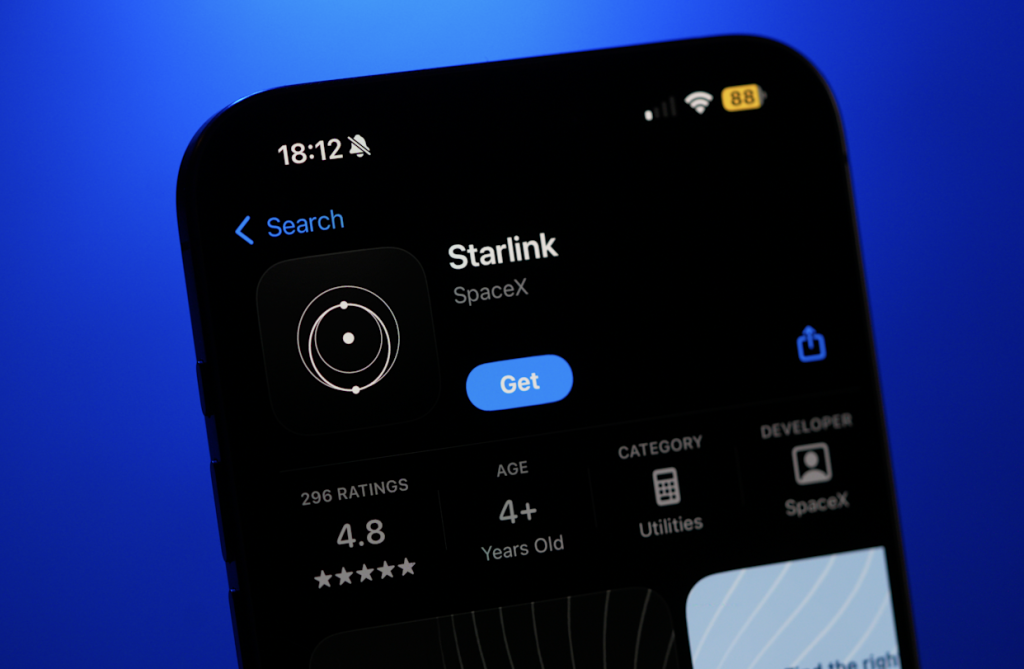
Here are the official links to download the Starlink app so you can set up, manage, and monitor your Starlink internet system on your phone or tablet (App Store).
Starlink app download.
Official Starlink App Download Links.
iOS (iPhone / iPad)
Starlink – App Store (Apple devices)
– https://apps.apple.com/mz/app/starlink/id1537177988 (App Store)
Works on iPhone, iPad, and Apple devices running compatible iOS versions. (App Store)
Android (Google Play)
Starlink – Google Play Store
https://play.google.com/store/apps/details?id=com.starlink.mobile
(This is the official Android download location — search “Starlink” if the link doesn’t open directly) (Starlink)
Notes Before Downloading
- Always download the official Starlink app from the Apple App Store or Google Play Store — this ensures you get the authentic version by SpaceX with full features and security. (Starlink Kenya)
- The app takes about 200–260 MB space and supports multiple languages, including English and Swahili. (App Store)
- After downloading, sign in with your Starlink account to access all internet setup, monitoring, and management tools. (Starlink Kenya)
If you want, I can include direct QR codes for these app downloads or show you how to install it step-by-step on your phone.
Available on Android and iOS, the app turns your smartphone into a powerful control center for your Starlink dish, router, and internet connection.
1. Why the Starlink App Is Essential
The Starlink App is not just optional software—it is a critical tool for:
- Initial Starlink dish installation.
- Checking satellite signal obstructions.
- Monitoring internet speed and latency.
- Managing Wi-Fi and connected devices.
- Diagnosing faults and service issues.
- Contacting Starlink support.
Whether you are installing Starlink at a home, office, school, farm, hotel, or remote site, the app ensures the system performs at its best.
2. Installation and First-Time Setup
a) Creating and Logging into Your Account
After downloading the app:
- Log in using your Starlink account credentials.
- This allows remote management, notifications, and access to support tools.
b) Dish Placement & Obstruction Check
One of the app’s most powerful features is Obstruction Detection:
- Uses your phone’s camera and sensors.
- Scans the sky above the installation area.
- Identifies trees, buildings, poles, or walls that may block satellites.
The app then shows:
- A clear visibility map.
- Estimated service quality based on obstructions.
- Recommended adjustments before permanent mounting.
This feature is especially important in urban areas, compounds, and estates.
3. Dish Alignment and Live Status
Once powered:
- The app detects the Starlink dish automatically.
- Shows real-time alignment status.
- Confirms when the dish is locked to satellites.
- Displays boot-up and calibration progress.
You can immediately see if:
- The dish is searching for satellites.
- The dish is online and active.
- There are alignment or power issues.
4. Internet Performance Monitoring
a) Speed Tests
The Starlink App provides built-in speed tests:
- Download speed.
- Upload speed.
- Latency (ping).
- Packet loss.
You can run:
- Device-to-internet tests.
- Router-to-satellite tests (helps isolate Wi-Fi vs satellite issues).
b) Real-Time Network Statistics
The app shows:
- Connection uptime.
- Short interruptions.
- Network health history.
- Performance trends over time.
This is useful for:
- Businesses.
- Remote work.
- Online meetings.
- Streaming and gaming diagnostics.
5. Wi-Fi & Network Management
Through the app, you can fully manage your Starlink Wi-Fi network:
a) Wi-Fi Settings
- Change Wi-Fi name (SSID).
- Update Wi-Fi password.
- Enable or disable Wi-Fi.
- Reboot the Starlink router remotely.
b) Connected Devices
- View all devices connected to your network.
- Identify heavy data users.
- Monitor network load.
This is ideal for homes, offices, schools, and guest networks.
6. Advanced Diagnostics & Troubleshooting
The Starlink App includes professional-grade diagnostics:
- Hardware health checks (dish, router, cables).
- Power and voltage status.
- Obstruction-related drop analysis.
- Network error reports.
If something goes wrong, the app:
- Identifies the fault.
- Suggests corrective actions.
- Logs data for technical support.
7. Notifications & Alerts
You receive instant alerts for:
- Network outages.
- Obstruction-related interruptions.
- Hardware faults.
- Software updates.
This ensures you stay informed even when away from the site.
8. Software & Firmware Updates
The Starlink App:
- Automatically manages dish and router updates.
- Notifies you when updates are installed.
- Ensures optimal performance and security.
Updates happen seamlessly, often during off-peak hours.
9. Remote Access & Support
When logged in:
- You can monitor your Starlink system remotely.
- Contact Starlink support directly from the app.
- Share diagnostics with technicians for faster resolution.
This is extremely useful for:
- Managed installations.
- Business customers.
- Remote sites and branch offices.
10. Who Should Use the Starlink App?
The Starlink App is ideal for:
- Home users.
- Businesses and offices.
- Hotels and lodges.
- Schools and institutions.
- Construction sites.
- Remote and rural locations.
It gives both end users and installers full visibility into system performance.
Final Note – Professional Installation Matters
While the Starlink App makes setup easy, proper mounting, cable routing, grounding, and obstruction planning still matter for long-term performance.
For professional Starlink supply, installation, mounting, and configuration in Kenya, contact Boardtac Solutions.
We ensure:
- Correct dish placement.
- Clean and secure installations.
- Optimized performance using the Starlink App.
- Reliable after-installation support.
If you want, I can also:
- Turn this into a blog-ready version.
- Shorten it for social media.
- Localize it specifically for Kenya-based users.